QuickBooks Customer Credit/Refund Processing


There are instances when the accountant must apply a credit to a customer's account. Understanding customer credit/refund processing in QuickBooks is critical to maintaining the general ledger account balances and easing the burden of bank reconciliation. QuickBooks accounting software has built-in options to handle these situations. Understanding how to utilize these options will ensure that the correct general ledger accounts are used. 


  1. Retain credit on the customer account for use when paying another invoice.
  2. Issue a refund by check or credit card, and
  3. Apply the credit to an outstanding invoice on the customer account.

The customer requests a credit and rebill of a previous invoice.

This is an example of 3-Apply the credit to an outstanding invoice, and also how to create the new invoice (rebill)
  • Using the disputed invoice as a 'model,' choose 'Refund/Credit' from the ribbon menu to create a credit for the current period and apply it to the disputed invoice.
  • To issue the rebill, choose 'Create a copy' using the disputed invoice from the ribbon menu. This will assign a new invoice number and a new date. The original invoice date can be used if the rebilled invoice is from the same period. The latest period date is used if the disputed invoice is from a prior period. Make the requested corrections and save the invoice.
This will ensure the credit memo and the reissue invoice are recorded in the same period. 
The new credit memo will be applied to the disputed invoice, reducing the amount due on the customer account. 

Retain a credit on the customer account.

When a customer returns a product for which they have already been invoiced and paid, use the original paid invoice as a model. Choose 'Refund/Credit' from the ribbon menu to create and save a new credit memo for the customer to use in future payments.

Issue a refund by check or credit card.
. Access the paid original invoice and create the credit memo. Since the invoice has been previously paid, choose 'use credit to give a refund'. 
In the Account section of the refund, choose the checking or credit card account to issue the payment.
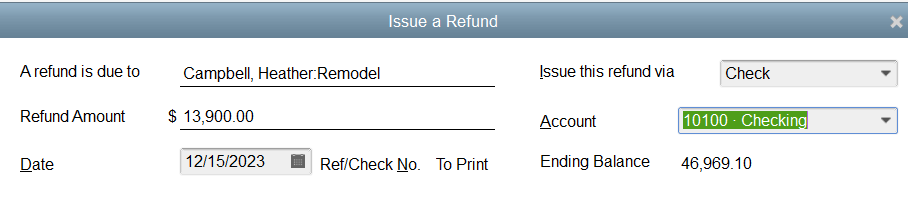

Utilizing credit memos for customer credit processing ensures the original transaction is properly reversed to the accounts receivable, inventory, income, and cost of goods general ledger accounts. 

Workarounds don't work.
 
Some organizations want to circumvent the accounts receivable refund process by setting the customer up as a vendor and issuing a refund check through the check-writing option. Reimbursing a customer by writing a vendor check does not reduce the income incurred through the original invoice. This procedure leaves income overstated by the amount of the refund. If the customer's refund check does not use the item tab, the inventory will not reflect the return of the product.
 
In addition, organizations processing customer payments by credit card often misunderstand the flow of credit card receipts to the operating account. Customer credit card payments flow directly to the operating account for many organizations. When the customer's credit card payments are part of the operating account, the customer refund can be issued as if it were a check. This will be reflected in the credit card processing software maintained outside of QuickBooks. For example, a customer refund is issued to the credit card using the bank's credit card processing software. The customer refund must also be entered using the QuickBooks customer credit processing to ensure that cash and the customer account are correctly recorded. Issuing the customer credit in the credit card processing software only causes money and income to be overstated.
 
Circumventing the established QuickBooks process for handling customer refunds can cause cash to be overstated, income to be overstated, cost of goods to be underestimated, and inventory to be understated if the goods are returned. This also puts additional strain on the bank reconciliation process by increasing the time needed to reconcile the exceptions in the credit card processing and creating the journal entries required to reset the affected general ledger accounts, circumventing the process. 

QuickBooks Budgeting Tips

Using QuickBooks to create and monitor your annual budget is more straightforward than it appears. Because QuickBooks budgeting requires month-by-month entry for the annual budget, users often shy away from using the budget module. However, with a few simple changes, you can create a budget that works for your business, is easy to review, and is easy to change.


The Secret to a Painless Budget

The secret to a great budget is simplification. Do you really care about each detailed account when you review your organization's performance? Only if there is a question, and using the budget report can provide one-click details.

  1. Review your chart of accounts, whether numeric or alpha. It's easier if you print a profit and loss statement and highlight the important results, such as total income, total cost of goods sold, total sales expense, and total general and administrative. The goal is to budget at a high level to make monitoring performance quicker.
  2. For the accounts you marked as important, set up a parent account, such as payroll liabilities. The individual payroll liabilities, such as FICA, Federal, State, State Unemployment, Worker's Compensation, etc., will become subaccounts of this parent (this becomes clearer when viewing the chart of accounts in the hierarchical view).
 Reviewing Budget Reports in QuickBooks

QuickBooks supplies basic reports for reviewing budget performance. You can control how often you review and modify your budget by modifying the reports and saving them with a new name.

For example, using the basic QuickBooks budget report Profit & Loss Budget Performance run the report to the screen. Choose Modify Report from the menu bar. Several tabs will appear. On the Display tab, change the report range date to quarterly. To view the difference between actual and budget, on the Display tab choose show actuals and show dollar difference. To reduce the data in the report, select the advanced tab to show only rows and columns with budgets.

Entering the Budget in QuickBooks

The QuickBooks budget is set up for monthly entries. If your organization generates only annual budget amounts, take the annual budgeted amounts and divide them by twelve. Enter the monthly amount in the January field and choose "Carry this across."

To enter a budget based on quarters, individually divide each quarter by 3 and enter the correct amount for each month of the quarter.

Using QuickBooks budgeting helps businesses stay on track. You can easily see where you are compared to your budget and what you need to change. Using the budgeting module may seem like a lot of work, but it ultimately saves time and prevents surprises.
 

What the payroll tax increase means to you


Now that the government has repealed the payroll tax cuts U.S. take home pay is cut by two percent. In addition, the IRS has restricted the federal income tax tables so middle-income folks may be subject to additional federal tax increases.


To reduce the strain on your income you may need to adjust your spending habits. Learn how to reduce your everyday spending with a minimal impact on your lifestyle.

Getting Credit without Using Credit Cards

Are you a small business just starting out? Are you trying to rebuild you credit, or trying to establish credit? Credit Cards are convienent, and sometimes too easy. You can run up your credit limit with just a few purchases for your business, like a computer, phone system, or copier.

There are ways to establish a credit score while avoiding credit card traps. Using this method, you can qualify for a small business loan or an automobile loan, and know that you will be able to manage your finances and your debt without surpizes.

Read Pros and Cons of Establishing Credit without Using Credit Cards for an in-depth analysis of the pros and cons of an alternate way to establish credit.

Increase Your Business with a Business Blog

Running a small business is like running a marathon. You need to make sure your customers have great service, your employees are happy and productive, and you’re generating new leads and contacts.

Have you thought about maintaining a business blog? Just creating a blog post, short or long, will keep your customers, and potential customers, up to date on the newest services and innovations offered by your business.

While there are many blog services out there, Google Blogger is free, and easy to use. 1&1 offers domain name registration for about $24.00 every 6 months, and comes with a website builder, and a blog.
As a business owner, you are always looking for ways to improve and increase your business. Blogs are a good way to let customers know you have the services they need

Insurance for Non Profit Business

Operating a Not for Profit business requires many of the same insurance requirements as a For Profit Business. While directors and managers may believe that a non profit business, set up for family assistance, education or development of the Arts is perceived as an organization designed to help the general public, and therefore immune from frivolous lawsuits and claims, this is not the truth.

In my article, Nonprofits: Types of Liability Insurance, I have outlined the important business liability insurance that all nonprofit organizations should carry.

Google Checkout-Big Help for Small Business

Do you want to set up an on-line store for your products, but don’t think you understand the web techniques. Google has introduced Google Checkout, a gadget you can add to your website or blog that will allow your followers and customers to purchase directly from your site.

Customers Shop, Begin the checkout process, Sign into Google Checkout, Buy, and Receive a Confirmation. Sellers receive Fraud Protection, Have the Potential to Increase Sales, and offer Google Convenience to their Customers.

There are minimal transaction fees, based upon sales volume.

If you are looking for ways to expand your business, Google Checkout can be an excellent assistant.

How to Hire the Best Person

The current job market is highly competitive, leaving businesses with a mountain of applications to sift through. How do you decide whom to ...