Showing posts with label Accounting. Show all posts

Roll in the Dough with Rolling Forecasts


I am working on rolling forecasts, a good way to replace your annual budget process and position your business for future growth. Rolling forecasts are not new. Rolling forecasts have been in use for some time, and successful organizations regularly undertake these exercises.


As a small or mid-size business, rolling forecasts can give you real power to control your financial future. The concept is simple and involves setting targets for where you want to achieve your profit, say, within five years. Your profit level could be $5 million or $ 500,000. Either way, set the target.

Next, make a plan. However, instead of setting a one-year plan and going through the exercise of sticking to it, you will employ a strategy that involves real-time business operations. The plan will be set up by quarters, so you will be setting up the first five quarters, or the next 15 months.

Now, instead of drilling down into your financial expenses, set the primary levels of production and inventory expenses, sales and marketing expenses, and administrative costs.

Have patience and wait until the end of the first quarter. How did you do? Where did you fall short? Is there a product that needs more marketing? Or are the costs too high to make the product profitable? Are you paying too much?

After the first quarter is complete, decide how you will achieve your sales and profit again for the next 15 months. Redo the second through fifth quarter of your original rolling forecast, adding a 'new' fifth quarter. In the process of the rolling forecast, the second becomes the first, and the remaining "roll forward".

After you do this for a few quarters, you will see where your business is headed and decide where you want it to go.

Benefits of Unit Cost Analysis

I worked for Monsanto in the Agricultural Division as a young accounting assistant. I was transferred from corporate to agricultural, entering a whole new world. At that time, the agricultural division was the most profitable part of the organization. What made it a new world for me was that there were no computers within this accounting department.


My first responsibility was to compose the domestic gross profit statement. I asked where to find the computer so I could begin setting up the spreadsheet. My boss laughed and handed me a columnar pad with thirteen columns and a calculator.

Each month, I used a 20-pound report for each product and transferred the respective product's gross sales, freight, quantity sold, and cost-related expenses onto my paper. I calculated the sales and cost units by product, compiled all the information, and generated a gross profit statement. During this process, I needed to explain why any sales or cost unit deviated from the budget by $.005.

I realized I was the computer. In this accounting environment, the belief was that computers are good, but people are more intelligent. A spreadsheet can't tell you why. To know why, you must understand the nature and components of unit cost.

A unit cost reflects the costs incurred to produce, store, and sell one unit of a particular product. Unit costs include:

· Fixed costs - depreciation, monthly rents, organizational cost allocations, and any cost incurred, whether or not production occurs; and
· Variable costs - labor, materials, electricity, any cost that increases or decreases depending on the output produced.

Total cost/total output equals unit cost. Total cost and total output are typically derived from a budget or forecast and can change on an annual, quarterly, or monthly basis. The static unit cost is a "best guess" based on past results, used to analyze the variance between the static unit cost and the actual unit cost. This variance analysis creates awareness of input costs, planned output, and planned productivity.

Input costs refer to the products and services used to produce output. Examples of variances are:
· Increase/decrease in the cost of material,
· Increase/decrease in freight in,
· Loss of vendor discounts,
· Missed vendor discounts.

Planned output is the estimated number of units. Examples of variances are:
· Material shortages,
· decrease in available labor,
· Equipment breakdown,
· Raw materials spillage,
· production for a customer who later canceled the order,
· Over-production based on incorrect scheduling,
· Overtime required due to unscheduled production,
· Overtime required due to a labor shortage,
· Increase/decrease in labor benefits,
· Increase in hourly wage.

Planned productivity refers to the number of units produced by current employees. Examples of variances are:
· Acquisition of new machinery that is less labor-intensive,
· Improvements in the production process.

A change in fixed costs can also contribute to the variance. For example,
· Change in fixed cost allocations,
· Increase/decrease in support staff costs,
· Change in monthly depreciation or rents.

Unit cost variance analysis can reveal these changes. Sometimes, poor communication results in an over- or understated standard cost unit. These variances also alert management to changes that can be addressed quickly before the end of the next monthly cycle, such as negotiating discounts with vendors or identifying new suppliers to provide materials at a lower cost. A monthly cost variance analysis completed within the short closing cycle can increase profit and efficiency.


QuickBooks Customer Credit/Refund Processing


There are instances when the accountant must apply a credit to a customer's account. Understanding customer credit/refund processing in QuickBooks is critical to maintaining the general ledger account balances and easing the burden of bank reconciliation. QuickBooks accounting software has built-in options to handle these situations. Understanding how to utilize these options will ensure that the correct general ledger accounts are used. 


  1. Retain credit on the customer account for use when paying another invoice.
  2. Issue a refund by check or credit card, and
  3. Apply the credit to an outstanding invoice on the customer account.

The customer requests a credit and rebill of a previous invoice.

This is an example of 3-Apply the credit to an outstanding invoice, and also how to create the new invoice (rebill)
  • Using the disputed invoice as a 'model,' choose 'Refund/Credit' from the ribbon menu to create a credit for the current period and apply it to the disputed invoice.
  • To issue the rebill, choose 'Create a copy' using the disputed invoice from the ribbon menu. This will assign a new invoice number and a new date. The original invoice date can be used if the rebilled invoice is from the same period. The latest period date is used if the disputed invoice is from a prior period. Make the requested corrections and save the invoice.
This will ensure the credit memo and the reissue invoice are recorded in the same period. 
The new credit memo will be applied to the disputed invoice, reducing the amount due on the customer account. 

Retain a credit on the customer account.

When a customer returns a product for which they have already been invoiced and paid, use the original paid invoice as a model. Choose 'Refund/Credit' from the ribbon menu to create and save a new credit memo for the customer to use in future payments.

Issue a refund by check or credit card.
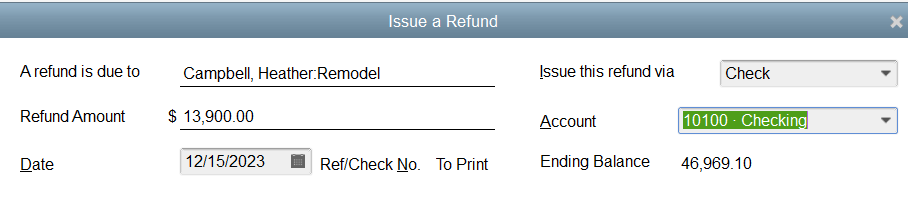
. Access the paid original invoice and create the credit memo. Since the invoice has been previously paid, choose 'use credit to give a refund'. 
In the Account section of the refund, choose the checking or credit card account to issue the payment.


Utilizing credit memos for customer credit processing ensures the original transaction is properly reversed to the accounts receivable, inventory, income, and cost of goods general ledger accounts. 

Workarounds don't work.
 
Some organizations want to circumvent the accounts receivable refund process by setting the customer up as a vendor and issuing a refund check through the check-writing option. Reimbursing a customer by writing a vendor check does not reduce the income incurred through the original invoice. This procedure leaves income overstated by the amount of the refund. If the customer's refund check does not use the item tab, the inventory will not reflect the return of the product.
 
In addition, organizations processing customer payments by credit card often misunderstand the flow of credit card receipts to the operating account. Customer credit card payments flow directly to the operating account for many organizations. When the customer's credit card payments are part of the operating account, the customer refund can be issued as if it were a check. This will be reflected in the credit card processing software maintained outside of QuickBooks. For example, a customer refund is issued to the credit card using the bank's credit card processing software. The customer refund must also be entered using the QuickBooks customer credit processing to ensure that cash and the customer account are correctly recorded. Issuing the customer credit in the credit card processing software only causes money and income to be overstated.
 
Circumventing the established QuickBooks process for handling customer refunds can cause cash to be overstated, income to be overstated, cost of goods to be underestimated, and inventory to be understated if the goods are returned. This also puts additional strain on the bank reconciliation process by increasing the time needed to reconcile the exceptions in the credit card processing and creating the journal entries required to reset the affected general ledger accounts, circumventing the process. 

QuickBooks Budgeting Tips

Using QuickBooks to create and monitor your annual budget is more straightforward than it appears. Because QuickBooks budgeting requires month-by-month entry for the annual budget, users often shy away from using the budget module. However, with a few simple changes, you can create a budget that works for your business, is easy to review, and is easy to change.


The Secret to a Painless Budget

The secret to a great budget is simplification. Do you really care about each detailed account when you review your organization's performance? Only if there is a question, and using the budget report can provide one-click details.

  1. Review your chart of accounts, whether numeric or alpha. It's easier if you print a profit and loss statement and highlight the important results, such as total income, total cost of goods sold, total sales expense, and total general and administrative. The goal is to budget at a high level to make monitoring performance quicker.
  2. For the accounts you marked as important, set up a parent account, such as payroll liabilities. The individual payroll liabilities, such as FICA, Federal, State, State Unemployment, Worker's Compensation, etc., will become subaccounts of this parent (this becomes clearer when viewing the chart of accounts in the hierarchical view).
 Reviewing Budget Reports in QuickBooks

QuickBooks supplies basic reports for reviewing budget performance. You can control how often you review and modify your budget by modifying the reports and saving them with a new name.

For example, using the basic QuickBooks budget report Profit & Loss Budget Performance run the report to the screen. Choose Modify Report from the menu bar. Several tabs will appear. On the Display tab, change the report range date to quarterly. To view the difference between actual and budget, on the Display tab choose show actuals and show dollar difference. To reduce the data in the report, select the advanced tab to show only rows and columns with budgets.

Entering the Budget in QuickBooks

The QuickBooks budget is set up for monthly entries. If your organization generates only annual budget amounts, take the annual budgeted amounts and divide them by twelve. Enter the monthly amount in the January field and choose "Carry this across."

To enter a budget based on quarters, individually divide each quarter by 3 and enter the correct amount for each month of the quarter.

Using QuickBooks budgeting helps businesses stay on track. You can easily see where you are compared to your budget and what you need to change. Using the budgeting module may seem like a lot of work, but it ultimately saves time and prevents surprises.
 

Google Checkout-Big Help for Small Business

Do you want to set up an on-line store for your products, but don’t think you understand the web techniques. Google has introduced Google Checkout, a gadget you can add to your website or blog that will allow your followers and customers to purchase directly from your site.

Customers Shop, Begin the checkout process, Sign into Google Checkout, Buy, and Receive a Confirmation. Sellers receive Fraud Protection, Have the Potential to Increase Sales, and offer Google Convenience to their Customers.

There are minimal transaction fees, based upon sales volume.

If you are looking for ways to expand your business, Google Checkout can be an excellent assistant.

Sales Tax made Easy-er

If your business sells product in several states, keeping up with the sales tax tables is always a challenge. And selling in a new state just adds to the burden. To make finding tax rates simpler, The FTA Links page presents a map of all 50 states.

When you click on the state in question, you will be taken directly to the states Department of Revenue. Here you can link directly to the sales tax rates and tables by county, if applicable.

Calculating sales tax for a home based business, such as Arts & Crafts, can be done using a spreadsheet, if you do not have a software package for inventories. My article How to Track Sales Tax in Your Arts & Crafts Business will give you step by step instructions on how to create a spreadsheet and set it up to calculate your sales tax.

10 ways to make Home Based Bookkeeping Easier

Debits and credits are fundamental accounting terms-debits increase assets or expenses; credits increase liabilities or income. Or debits on...